Creating Package Components
The Package Components menu allows users to create, modify, and delete component charges for packages. Components are the individual charges that will be available when creating a package.
Breakpoint: 50395 - Package Components (Engineering - Package)
Perform the following steps to create a package component:
Navigate to Settings à Package à Package Components.
Click Create Package Component.
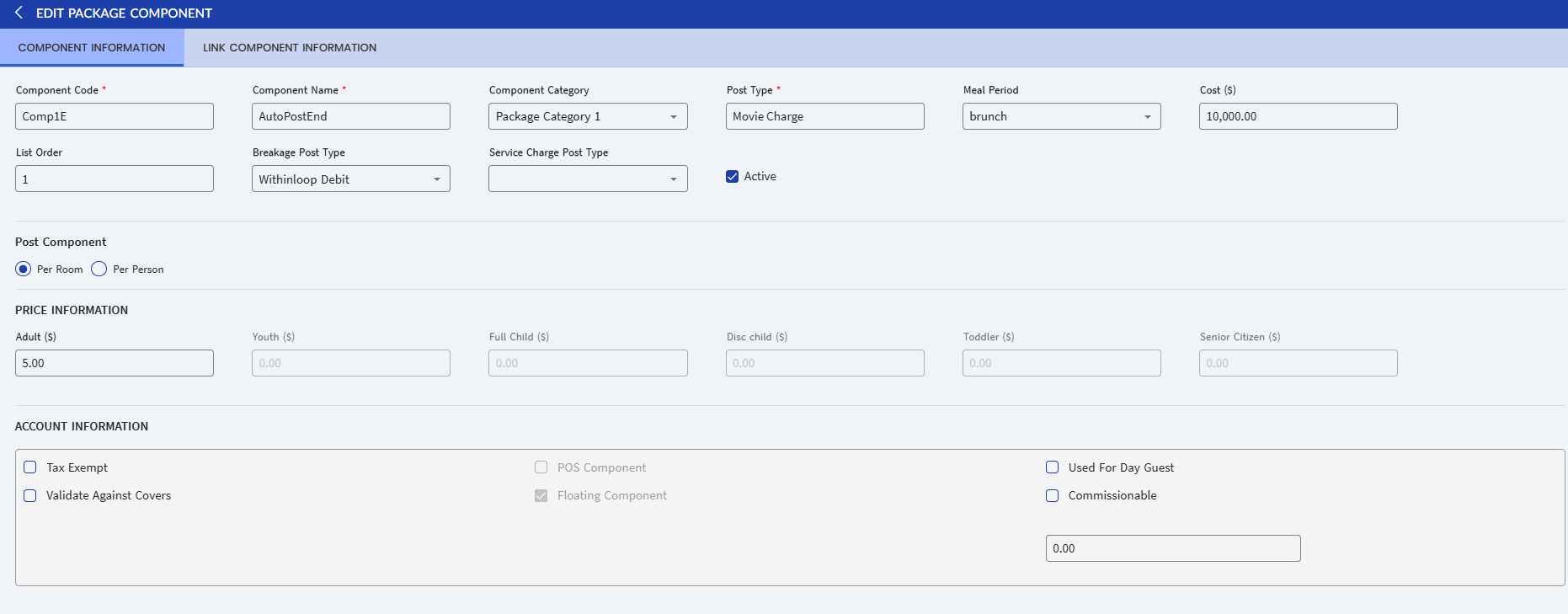
Refer to the following table and fill in the fields:
|
Field |
Description |
|---|---|
|
Component Code |
A unique code to represent the component. Up to 15 alphanumeric characters are supported. |
|
Component Name |
A name for the component. Up to 50 alphanumeric characters are supported. |
|
Component Category |
Select a category to which the component must be associated. |
|
Post Type |
Select a preferred post type code for posting the component charges. |
|
Meal Period |
Select a meal period. This applies to manual post components that are posted through an interface and determines which substitute postings are to be configured. The available options are Breakfast, Lunch, and Dinner. This is also used in the Meal Projection report. |
|
Cost |
The amount for the package component. |
|
Active |
When enabled, indicates that the package component is active. If not, the component is not listed in the Package Component drop-down list. |
|
List Order |
The position in which the component must appear in the Package Component drop-down list. |
|
Breakage Post Type |
Select a preferred post type for charges related to manual components in the package. |
|
Service Charge Post Type |
Select a preferred post type for service charge related to auto-post components in the package |
|
Post Component |
|
|
Per Room |
When enabled, posts the component charges by room number. The posting amount remains the same regardless of the number of adults/youths/children in the room. |
|
Per Person |
When enabled, allows users to post component charges for each person in the group. When a component is set up to post per person the amount to be posted is calculated by multiplying the number of adults/youths/teen/children in the room with the component price defined for the corresponding age group. |
|
Price Information |
|
|
Adult |
The component charge for adult guests. |
|
Youth |
The component charge for youth guests. |
|
Teen |
The component charge for teen guests. |
|
Child |
The component charge for child guests. |
|
Toddlers |
The component charge for toddlers. |
|
Senior Citizens |
The component charge for senior citizens. |
|
Account Information |
|
|
Tax Exempt |
When enabled, indicates that the component is exempted of all taxes. For VAT-enabled properties, if the Package Tax Exempt checkbox is disabled for a package plan, and the component has the tax exempt functionality enabled, tax exemption will apply only to that specific component. |
|
POS Component |
When enabled, indicates that the component is a point-of-sale component. |
|
Used For Day Guest |
When enabled, indicates that the component is used for day guests. |
|
Validate Against Covers |
When enabled, allows a restaurant component to be posted either to the package folio or the guest folio based on the number of covers (guests) on the check. The check is apportioned based on the number of adults on the stay record vs. the number of covers on the check. For example, if there are two adults on the stay record and a check with three covers is closed to the room, 2/3 of the check is posted to the package folio and 1/3 of the check is posted to the guest folio. This option is only available if the Versa POS module or a custom interface is installed. |
|
Commissionable |
When enabled, indicates that the component involves a commission charge. Enter the commission amount to be applied other than the default value that may potentially be assigned to the travel agent attached to a stay. If not set, the commission attached to the travel agent on the guest stay record is used. |
|
Floating Component |
When enabled, allows the components to be added to a package without having to assign a specific day for when the component is to be used. For example, a dinner component on a three-day package could be used on any day of the package. This feature is only available if the Manual Post Components option is selected. |
|
Post Off Set To Group Master |
When enabled, allows an offsetting credit to be posted to a group master with this component. This option is used when individuals from a group booking are paying their own charges, but the group wishes to have the group master credited based on a fee or charge applied to the individual packages. The postings associated with the guest folio and package folio do not change when the logic is utilized. An offsetting credit is posted to the group master for the post type assigned to the component. If there is no group master associated with the checked in guest at the time of posting room and tax, there is no offsetting posting. |
|
Full Amount |
When selected, considers the full amount of the offsetting credit to be posted to the group master. This option will be enabled for selection only when the Post Off Set To Group Master checkbox is enabled. |
|
Amount in % |
When selected, allows users to enter the percentage of the offsetting credit to be posted to the group master in the Percentage field. This option will be enabled for selection only when the Post Off Set To Group Master checkbox is enabled. |
|
Component Information |
|
|
Auto Post Component |
When enabled, the charges are posted to the folio automatically during the Night Audit Room & Tax function. |
|
Manual Post Component |
When enabled, the charges must be posted to the package folio through an interface. Only the package components that are defined as manual post appear on the Package Entitlements screen in Versa PMS, Versa GolfPro, and Versa Spa Retail. The Allow Overcharge and Guest Pays Overcharge options are enabled only if this option is selected. |
|
No Breakage Component |
When enabled, indicates that the component is a no breakage component. This option can be enabled only if the Manual Post Component is selected. |
|
Post Component Information |
|
|
End of The Day |
When enabled, the component charges are posted to the guest folio during the Before Z-Out process of the night audit. End of the day components cannot be selected for the last day of a package plan. |
|
Beginning of The Day |
When enabled, the components are posted on the following day’s revenue, that is, during the After Z-Out process of the night audit. Beginning of the day components cannot be selected for the first day of a package plan. |
|
Overcharge Information |
|
|
Allow Overcharge |
This option is available when the Manual Post Component option is selected and determine if charges on a package folio are allowed when the amount of the charge posting through the interface is higher than the component price. |
|
Guest Pays Overcharge |
When enabled, indicates that the additional charges for the component will be paid by the guest. |
|
Maximum Overcharge Amount |
The maximum amount excess charge that can be posted for a component. This field is enabled only if Allow Overcharge option is enabled. |
Navigate to Link Component Information tab.
Select Link Inventory Item or Link Event option to link an inventory item or an event to the component, respectively.
Select an inventory item or an event from the grid.
Click Create.